Setup
Bringing Your HomeKey-ESP32 to Life
Welcome to the exciting part! This guide will walk you through the process of getting your HomeKey-ESP32 device up and running. We’ll cover everything from downloading the firmware to flashing it onto your ESP32 and getting it connected to your network.
1. Download the Firmware
First things first, let’s get the brains of your HomeKey-ESP32 onto your computer. We provide pre-compiled firmware binaries, so you don’t need to worry about compiling anything yourself!
Visit the GitHub Releases Page: Head over to the official HomeKey-ESP32 GitHub releases page:
ReleasesDownload the Latest Release: Look for the “Latest release” tag. Under the “Assets” section, you’ll find several firmware files:
*.firmware.factory.bin: This is the file used to flash a new device for the first time. It contains the bootloader, application, and LittleFS filesystem all merged into one, ready to be flashed at address0x0.*.firmware.bin: This file contains only the application firmware and is primarily used for Over-The-Air (OTA) updates.littlefs.bin: This file contains the web interface files and is also used for OTA updates of the filesystem.
More details on OTA updates can be found in the Updates Guide.
2. Connect Your Hardware
Before flashing, you need to connect your PN532 NFC module to your ESP32 development board.
- Using Jumper Wires: If you’re connecting the modules manually, refer to the NFC Module Wiring section below. Ensure you connect the correct SPI pins (SCK, MISO, MOSI, SS) and power (VCC/3V3, GND). Remember the tip about soldering for the best connectivity!
- Using an Integrated PCB Board: If you have one of the awesome Integrated PCB Boards then everything should ready but make sure to check for any additional instructions for the board you’ve chosen.
2.1. NFC Module Wiring
Note
Both the ESP32 and the PN532 must use the same power supply to communicate.
Important
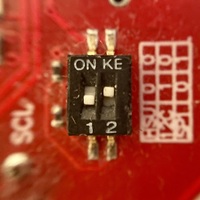
The PN532 has to be set to SPI mode, not I2C mode.
The common red board has a DIP switch on a cornerside of the board that switches between I2C and SPI mode. See the image below for reference.
2.1.1. Integrated PCB BOARDS
When using an Integrated PCB, all the physical connections between the PN532 and the ESP32 have already been made, however, you might still have to update the pins used within the firmware from the WebUI.
The web interface contains presets for the following boards:
@lollokara’s board (ESP32-C3)
- SS: GPIO6
- SCK: GPIO5
- MISO: GPIO4
- MOSI: GPIO7
CASmo-NFC
- SS: GPIO5
- SCK: GPIO18
- MISO: GPIO19
- MOSI: GPIO23
CASmo-NFC-MB-ETH
- SS: GPIO5
- SCK: GPIO14
- MISO: GPIO12
- MOSI: GPIO13
2.1.2. Default GPIO Pinouts
The default pinout differs depending on the chip variant and they are defined inside Arduino-ESP32, see the links below.
Note
Custom GPIO Pins can assigned from the WebUI
Default pinout for ESP32: pins_arduino.h
Default pinout for ESP32-C3: pins_arduino.h
Default pinout for ESP32-C6: pins_arduino.h
Default pinout for ESP32-S3: pins_arduino.h
Table below is a wiring example using the ESP32:
| ESP32 Pin | PN532 Pin |
|---|---|
| VCC/3V3 | VCC |
| GND | GND |
| GPIO18 | SCK |
| GPIO19 | MISO |
| GPIO23 | MOSI |
| GPIO5 | SS |
3. Flash the Firmware
Now for the magic moment! You have two main options for flashing the firmware: command-line with esptool.py or browser-based with esptool-js. Choose the method you’re most comfortable with.
Install esptool.py:
Install
esptool.pyusing pip:pip install esptool
Or
- Download from the Github releases page here
Connect ESP32: Connect your ESP32 development board to your computer using a USB cable.
Identify Serial Port: You’ll need to find the serial port your ESP32 is connected to.
- Linux: Typically
/dev/ttyUSB0or/dev/ttyACM0. You can check withls /dev/tty*. - macOS: Typically
/dev/cu.usbserial-XXXXor/dev/cu.SLAB_USBtoUART. You can check withls /dev/cu.*. - Windows: Check Device Manager for “USB Serial Device” or “CP210x USB to UART Bridge” under “Ports (COM & LPT)”. Note the COM port number (e.g.,
COM3).
- Linux: Typically
Open Terminal/Command Prompt: Navigate to the directory where you downloaded the
esptool.pyscript (if you downloaded it manually) and the*.firmware.factory.binfile.Run the Flash Command: Execute the following command, replacing
YOUR_PORTwith your serial port andFACTORY_FIRMWARE_FILE.binwith the name of your downloadedesp32XX.firmware.factory.binfile:esptool.py --port YOUR_PORT write_flash 0x0 FACTORY_FIRMWARE_FILE.bin--port YOUR_PORT: Your ESP32’s serial port.write_flash 0x0: The command to write the flash, starting at address0x0. Crucially, use0x0for the merged firmware files and only for those.FACTORY_FIRMWARE_FILE.bin: The path to your downloadedesp32XX.firmware.factory.binbinary.
(If any issues) Erase Flash : If you encounter any issues, such as a reset loop, you can try erasing the flash before flashing the firmware:
esptool.py --port YOUR_PORT erase-flashThen, re-run the flash command from step 4.
Initiate Flash Mode: If the flashing doesn’t start automatically, you might need to manually put your ESP32 into flash mode. This usually involves:
- Holding down the “BOOT” or “GPIO0” button on your ESP32 board.
- Pressing and releasing the “EN” or “RST” button.
- Releasing the “BOOT” button.
- Try the flash command from step 4 again.
Wait for Completion: The flashing process will take a few moments. Once complete, you’ll see a “Hash of data verified” message followed by “Hard resetting via RTS pin”.
This is the easiest way to flash if you’re using a Chromium-based browser!
- Connect ESP32: Connect your ESP32 development board to your computer using a USB cable.
- Open esptool-js Page: Navigate to the page below in your Chromium-based browser (Chrome, Edge, Brave, etc.): https://espressif.github.io/esptool-js/
- Select Firmware File: On the web page, you’ll find an option to select your firmware file. Click “Choose File” and select the appropriate
*.firmware.factory.binfile you downloaded earlier. - Select Serial Port: Click the “Connect” button. A pop-up will appear asking you to select the serial port for your ESP32. Choose the correct port and click “Connect”.
- Change Flash Address: Ensure the Flash Address is set to
0x0. - Flash Device: Once connected, click the “Program” button.
- Initiate Flash Mode (if needed): Similar to the command-line method, you might need to manually put your ESP32 into flash mode if the process doesn’t start. Follow the steps in Option A, step 7.
- Wait for Completion: The browser interface will show the progress. Once complete, you’ll get a success message.
4. Wi-Fi Configuration & Initial Setup
After successfully flashing the firmware, your HomeKey-ESP32 is ready for its first boot!
- Monitor Serial Output (Optional but Recommended): You can use the console function from
esptool-js, just press “Connect” under the “Console” section and you should starting getting output in the box underneath it. - Connect to Wi-Fi Access Point: On its first boot, the device will start a Wi-Fi access point (AP) with the following details:
- SSID:
HomeSpan-Setup - Password:
homespanConnect your phone or computer to this Wi-Fi network.
- SSID:
- Access the Captive Portal: A captive portal should open automatically. If it doesn’t, you can open it manually by navigating to
http://192.168.4.1/hotspot-detect.htmlin your web browser. - Configure Wi-Fi and HomeKit Setup Code: On the captive portal page, you can configure the device to connect to your home Wi-Fi network. You can also set the HomeKit setup code on this page otherwise it is the one seen below.
- Access the Web Interface: After the device is connected to your Wi-Fi network, you can access the full web interface by navigating to the device’s IP address in your web browser. The web interface allows you to configure all aspects of the device, including MQTT, actions, and other miscellaneous settings.
5. HomeKit Pairing
The default HomeKit pairing code is 466-37-726. You can change this code in the web UI or through the captive portal during Wi-Fi setup.
Once the device is connected to your Wi-Fi network, you can pair it with HomeKit by entering the setup code in the Home app.
6. Troubleshooting Common Setup Issues
- “Failed to connect to ESP32: Timed out waiting for packet header” or similar errors during flashing:
- Ensure your ESP32 is properly in flash mode (hold BOOT, press/release EN, release BOOT).
- Double-check that you’ve selected the correct serial port.
- Try a different USB cable or USB port on your computer.
- Ensure your power supply is stable.
- ESP32 not creating Wi-Fi AP:
- Verify the firmware flashed successfully.
- Try a hard reset (disconnect/reconnect USB power).
- Check serial output for any error messages.
- Cannot access web interface (192.168.4.1):
- Make sure your device (phone/computer) is actually connected to the HomeKey-ESP32 Wi-Fi AP.
- Try clearing your browser’s cache or using an incognito/private browsing window.
- Ensure no other network settings on your computer are interfering.
Congratulations! Your HomeKey-ESP32 is now flashed and should be connected to your network. The next step is to dive into the Configuration Guide to fine-tune its settings and integrate it with HomeKit and Home Assistant!